Using the ncpa.cpl command really saves me time in opening and managing network connection settings in Windows 10 and 11. I think this is the most convenient and fastest trick.
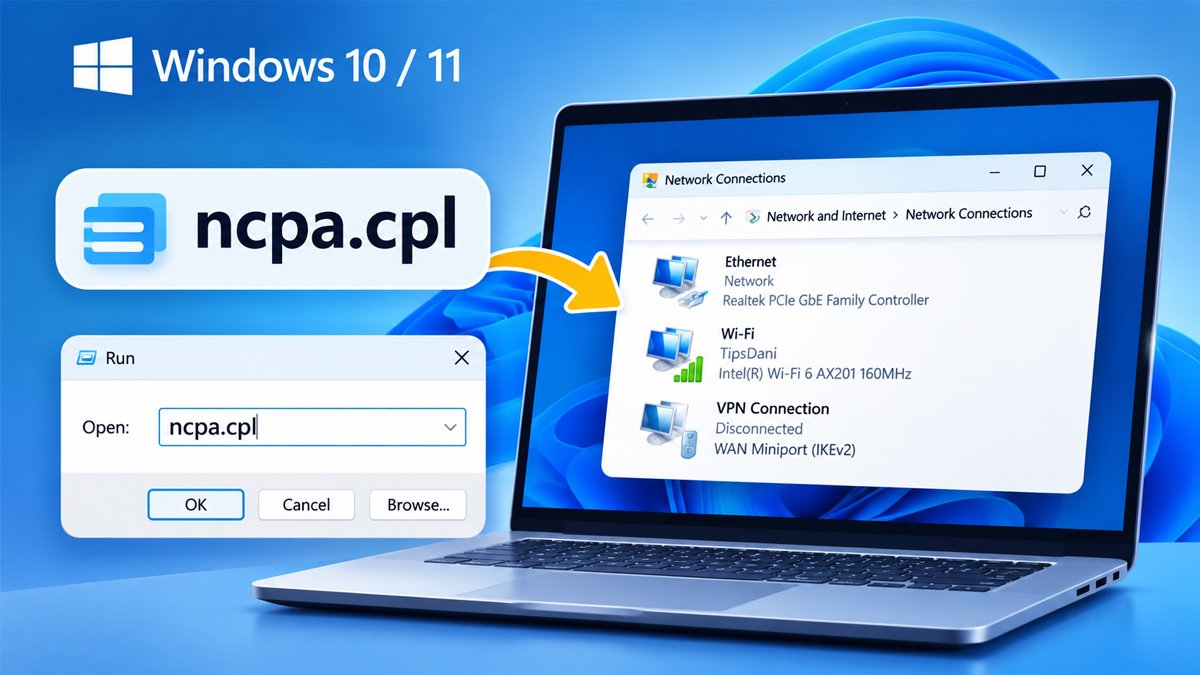
If you are a computer technician/IT guy, this command will surely be familiar, as you likely spend much of your time dealing with network configurations. However, for newbie users, ncpa.cpl, much like other commands such as netplwiz might require a bit more explanation. So, in this post, I will clarify what ncpa.cpl is, how to use it, and its role in network configuration.
What is ncpa.cpl?
The ncpa.cpl command is a shortcut or run command in Windows which functions to open the Network Connections window. The ncpa.cpl command works on all versions of Windows, from Windows XP to Windows 11.
By running this command, users can directly access network settings without having to navigate through numerous menus or manual steps. The ncpa.cpl command helps speed up access to settings related to internet connections, Wi-Fi, and network adapters installed on the computer.
How to Use ncpa.cpl
Using this command is very easy. Here are the steps:
-
- Press Windows + R to open the Run window.
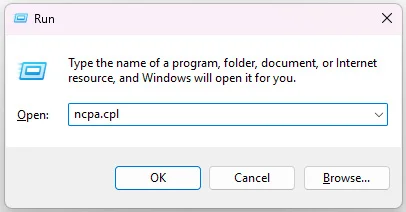
- Type “ncpa.cpl” (without the quotes) and press Enter.
- The Network Connections window will open.
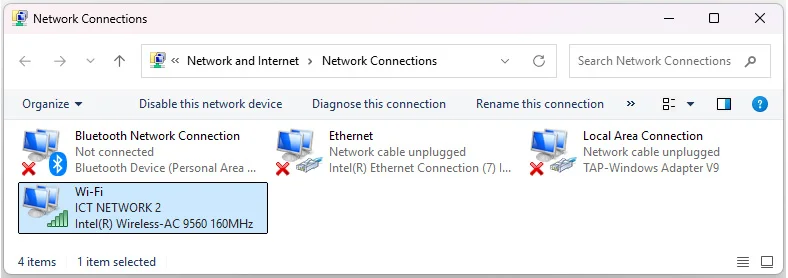
The image above is a display of the Network Connections window, where all network connections available on your computer will be displayed, such as Ethernet, Wi-Fi, Bluetooth, and VPN.
- Press Windows + R to open the Run window.
Apart from the Run window, we can also use ncpa.cpl through Command Prompt (CMD).
Uses and Benefits of ncpa.cpl
This command has various useful functions, particularly in network management. Here are some of its main functions:
✅ Viewing Active Network Connections
The Network Connections window displays a list of available network connections, including active and inactive ones. This includes wired Ethernet connections, Wi-Fi connections, VPN connections, and virtual network adapters.
✅ Enabling or Disabling Network Connections
If you want to temporarily disable or re-enable a network connection, you can do so easily with this command. Right-click the network you want to manage and select Enable or Disable.
✅ Adjusting Network Properties
This command also allows you to access more advanced settings, such as IP addresses, DNS settings, and configure specific network protocols. You can do this by right-clicking the connection and selecting Properties.
✅ Troubleshooting Network Problems
If you’re experiencing network issues, you can start troubleshooting from this window. You can check the connection status, run diagnostics on a specific network connection, or disable and re-enable a network adapter.
✅ Reconnecting a VPN Connection
For VPN users, ncpa.cpl makes managing your VPN connections easier. You can quickly connect to or disconnect from existing VPN connections.
Creating a Desktop Shortcut
To create a Network Connections shortcut on the desktop, follow these steps:
-
- Right-click on the desktop and select New → Shortcut.
- In the window that appears, type the following path: C:\Windows\System32\ncpa.cpl
- Click Next.
- Give the shortcut a name of your choice, for example, Network Connections.
- Click Finish.
The shortcut will appear on the desktop, and you can use it to open the Network Connections window directly.
Alternative Ways to Open Network Connections
We can access the Network Connections window manually via the following menus:
-
- Control Panel: Open Control Panel → Network and Internet → Network and Sharing Center → Change adapter settings.
- Windows 10 Settings: Open Settings → Network & Internet → Status → Change adapter options.
- Windows 11 Settings: Open Settings → Network & internet → Advanced network settings → More network adapter options.
With just a quick command, ncpa.cpl saves you plenty of clicks whenever you need to check or fix your network adapters in Windows.

Dani Alfin Pratama, S.Kom., is the founder of Tips Dani. With a background in computer science, education, and information technology, he shares educational information, practical tips, and helpful tutorials to help readers learn and solve everyday problems.