There’s a simple trick using the Netplwiz Command to enable or disable automatic login on Windows 11 or Windows 10. By default, Microsoft security requires users to enter a password when first logging into their operating system after turning on the computer.
As mentioned above, you can disable this feature or vice versa. I’ll provide detailed instructions below. Please read carefully.
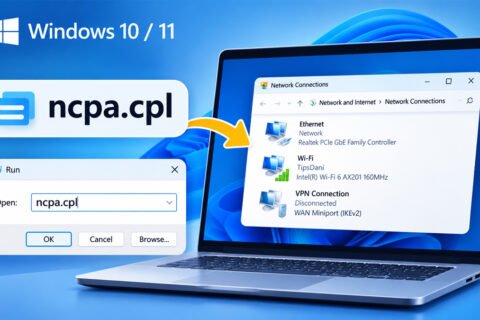
Windows also provides other useful Run commands. For example, you can use the ncpa.cpl command to open Network Connections in Windows 10 and 11.
Location of the Netplwiz.exe File in Windows Directory
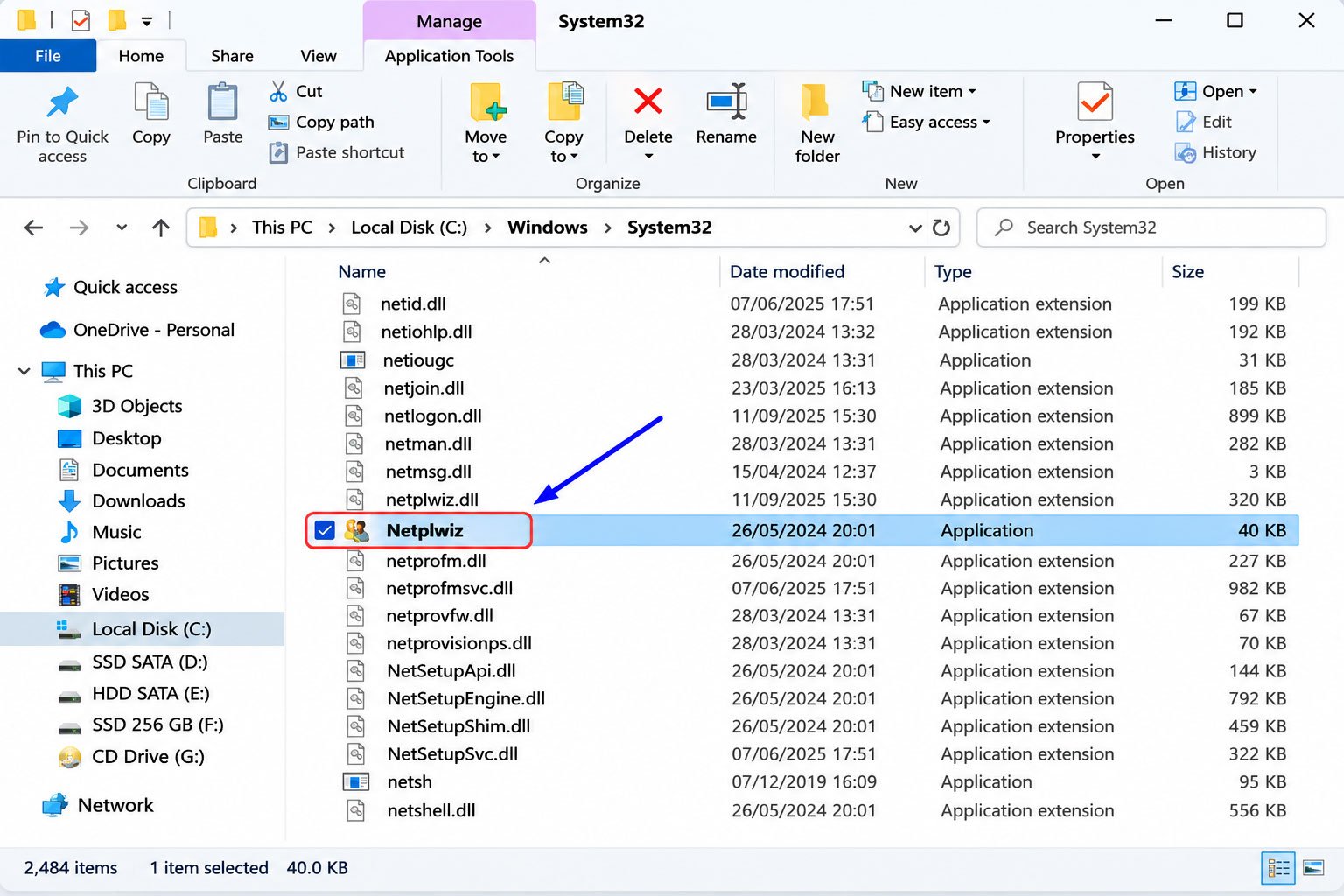
Before using the simple way with the Run command, to give you an example and help you understand better, just see the manual method to find the netplwiz.exe file in your system.
Inside this directory ⇒ C:\Windows\System32, you can open netplwiz.exe by double-clicking it.
Netplwiz Command for Autologin on Windows 10/11 without Password
You might be thinking, “Why disable the password? How the security? Isn’t it!” Well, that’s true if you frequently use your laptop/PC in a public area or with a lot of people.
But if you use your laptop/PC privately at home and don’t have other people accessing it, entering a password every time can sometimes be a hassle. Therefore, you may choose to log in automatically for convenience. However, keep in mind that anyone with physical access to your computer may be able to access your account and personal files when automatic login is enabled.
For more information about Windows sign-in methods and security options, visit Microsoft’s Windows sign-in options guide.
NOTE: The following Netplwiz Command guide will configure Windows to sign in automatically to your selected user account when you start your computer. This means you won’t need to manually enter your account credentials during the normal startup sign-in process.
Okay, let’s do it!
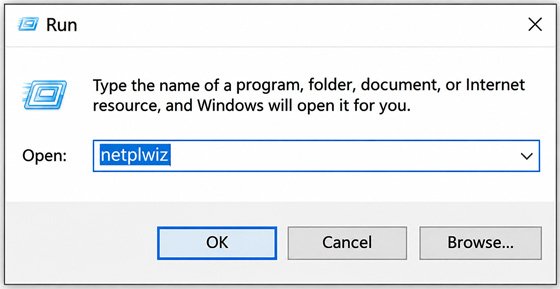
- Open Windows Run by pressing Win + R.
- Type netplwiz and press Enter.
- Once the User Accounts window opens, look for the option “Users must enter a username and password to use this computer.” Simply uncheck it.
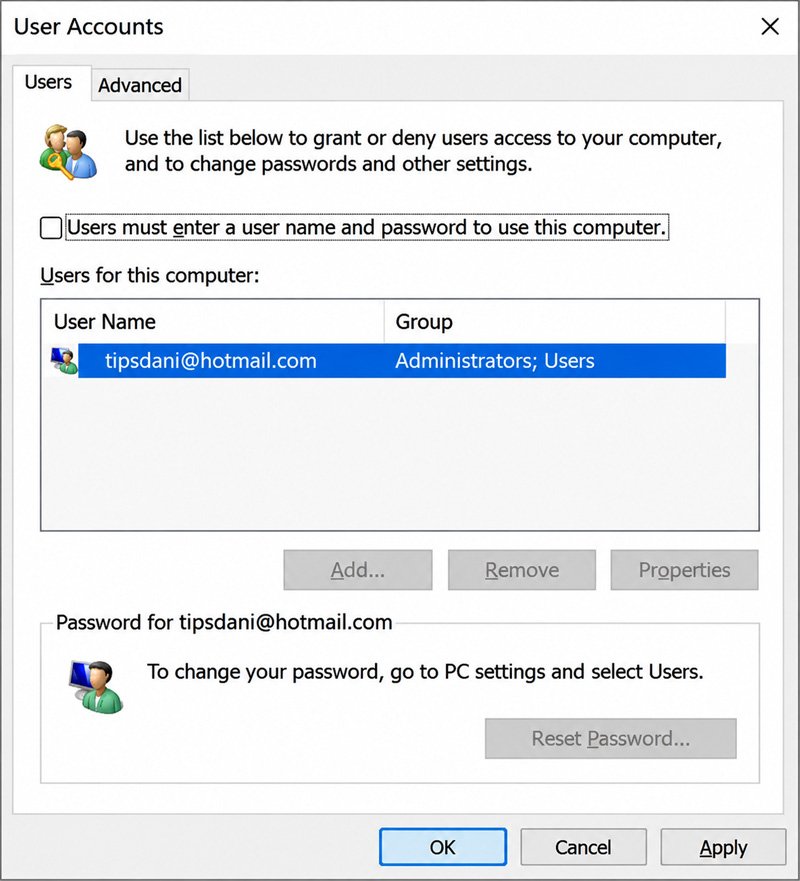
- Enter the password for the associated user. If you’re using a local account that doesn’t have a password, you can leave this blank. Save your settings by clicking OK.
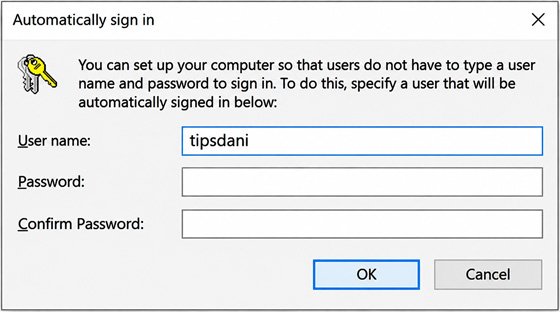
- Done.
After restarting your computer, Windows should automatically sign in to the selected user account.
How to Fix the Checkbox Missing ‘Netplwiz Command’ in “Users must enter a username and password” Option
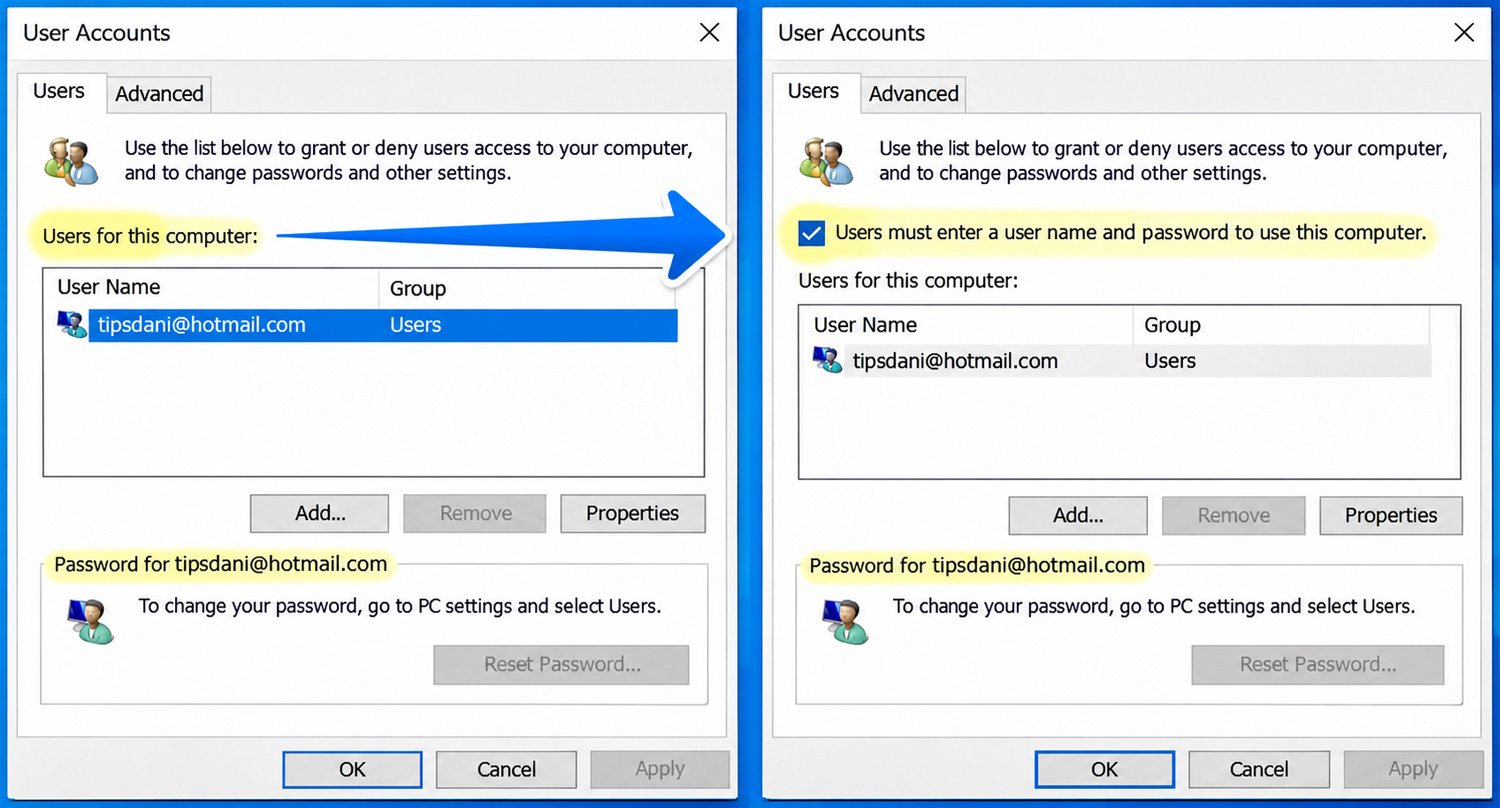
Sometimes that checkbox in the Windows User Accounts menu doesn’t appear, and this isn’t a serious problem. Please follow the instructions below:
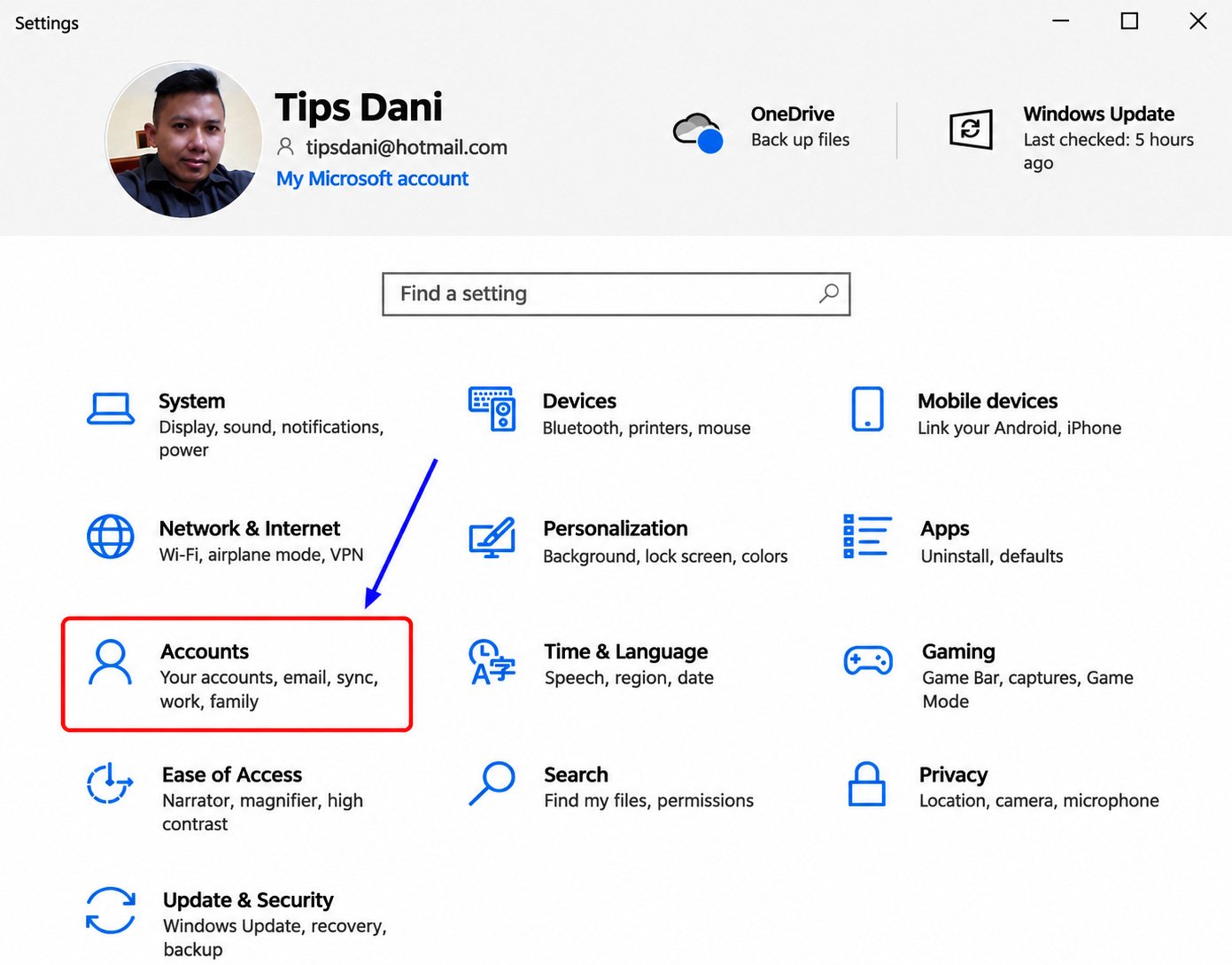
- Open Settings by pressing Windows + I.
- Click the Accounts option.
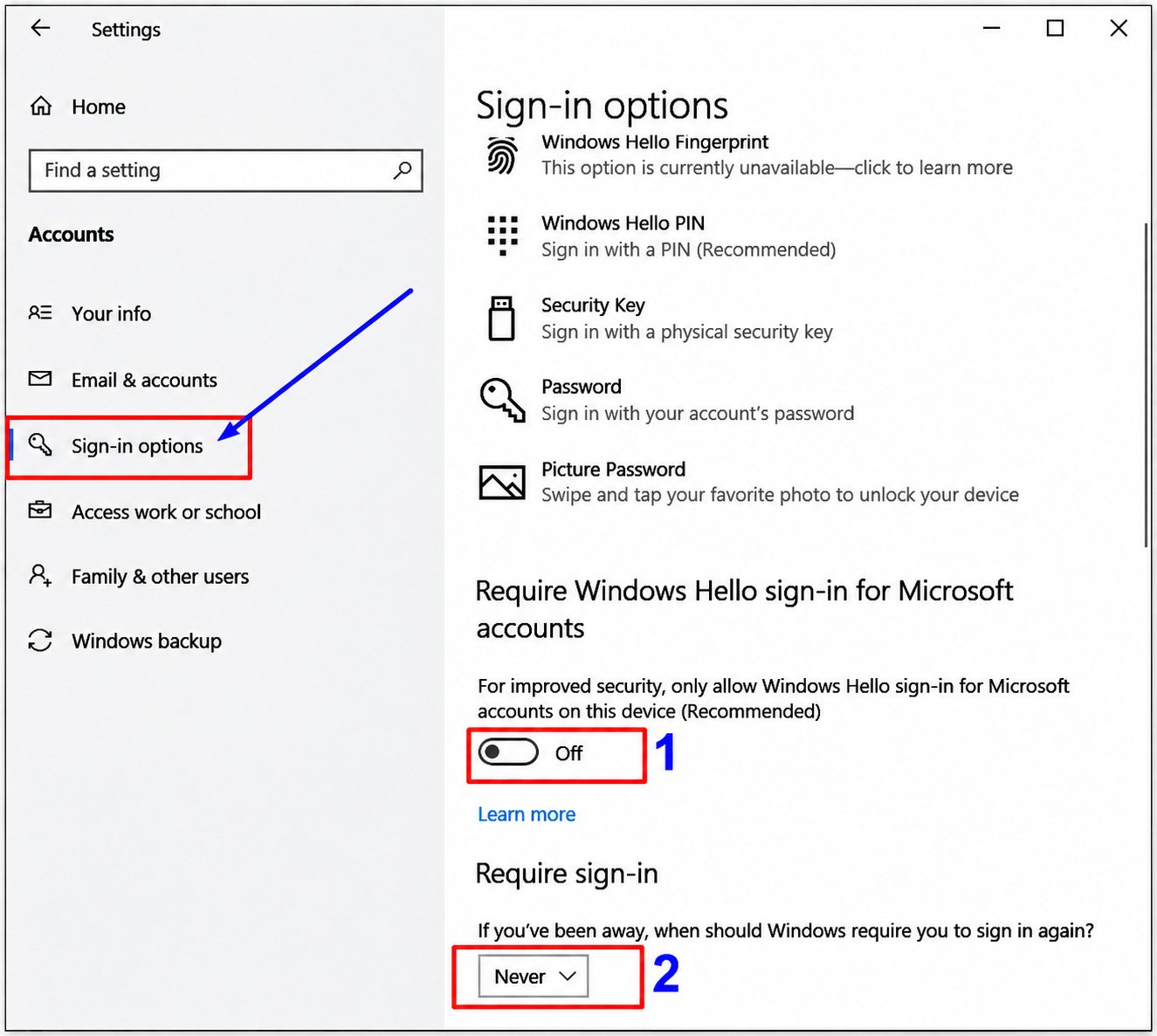
- On the left panel, click Sign-in options.
- Under Additional settings, turn OFF the option “For improved security, only allow Windows Hello sign-in for Microsoft accounts on this device” (Windows 11) or “Require Windows Hello sign-in for Microsoft accounts” (Windows 10), if available.
- Close the User Accounts window if it is still open, then run netplwiz again using Windows Run.
- Check whether the “Users must enter a username and password to use this computer” option appears again.
Please note that turning off this Windows Hello setting only allows password-based sign-in options to be used again. It does not automatically enable automatic login. You still need to configure the option in netplwiz.
FAQ
Can automatic login be disabled after being enabled?
Absolutely. You can go back to the User Accounts settings and reactivate the option that requires users to enter a username and password.
Do all versions of Windows work with the automatic login trick?
This method is intended for Windows 10 and Windows 11, although the available options may vary depending on your Windows version and account settings.
Why doesn’t the automatic login option appear?
One possible reason is that the Windows Hello-only sign-in option is enabled for your Microsoft account. You can try turning it off under Settings → Accounts → Sign-in options, then close and reopen netplwiz. Other account or security policies may also affect this option.
Does enabling automatic login make your laptop/PC vulnerable?
Yes, it can reduce your computer’s security. Anyone with physical access to your computer may be able to access your Windows account and personal files without entering your password. If you frequently use your computer in public areas or share it with others, it’s best to keep manual sign-in enabled.
How do I reactivate password protection in Windows?
Go to the User Accounts window using netplwiz, then enable the “Users must enter a username and password to use this computer” option, if available. Your Windows account password is not deleted when you enable automatic login.
What’s the difference between a Local Account and a Microsoft Account?
A Local Account is used on a specific Windows device and doesn’t require an internet connection to sign in. A Microsoft Account is linked to Microsoft’s online services and can be used across multiple devices and services.

Dani Alfin Pratama, S.Kom., is the founder of Tips Dani. With a background in computer science, education, and information technology, he shares educational information, practical tips, and helpful tutorials to help readers learn and solve everyday problems.